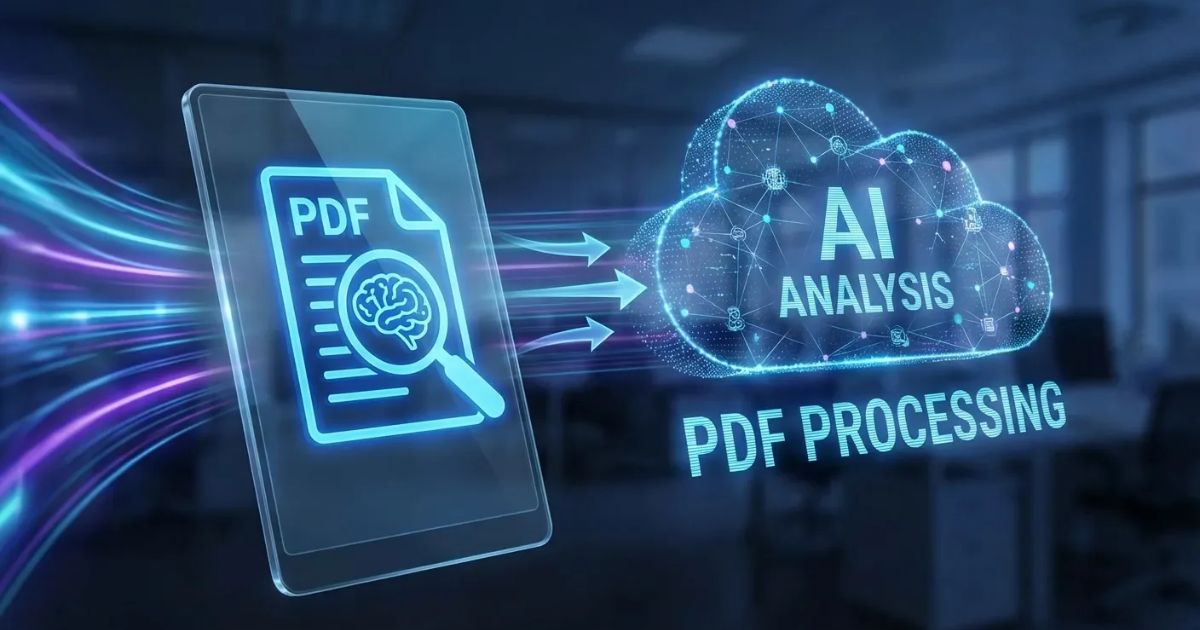
To extract and analyze information from PDF documents for business, use Adobe Acrobat’s AI Assistant to chat with PDF files in your browser. Adobe says it can pull out key information such as facts, figures, clauses, and insights, and its answers include numbered references that highlight the source passage. Adobe deletes unsaved files.
This article is for business teams that want AI tools to extract and analyze information from PDF documents.
AI Tools for PDF Document Extraction and Analysis in Business
The AI tools for PDF document extraction and analysis in business fall into two groups: chat tools such as Adobe Acrobat’s AI Assistant, Microsoft Copilot, ChatPDF, and Humata, which answer questions about a file, while Docsumo and Klippa extract structured data into other systems. Adobe’s chat with PDF page says its assistant extracts facts, figures, clauses, and insights. Docsumo’s site says its AI agents extract documents such as invoices and bank statements, then send structured data to your systems. Pick by whether you need answers or data fields.
| Platform | Best For | Key Details |
| Adobe Acrobat AI Assistant | Questions about contracts and reports, with checkable references | Adobe says answers include numbered references that highlight the source in your document |
| Microsoft Copilot | Summaries of PDFs already stored in OneDrive | Microsoft says Copilot in OneDrive can summarize supported files, including PDFs, without opening them |
| ChatPDF | Quick questions with a side-by-side view | ChatPDF says answers include citations, and an account adds saved history and multi-document chats |
| Humata | Shared team questions across many files | Humata says answers come with citations, and teams can control who can ask questions on documents |
| Docsumo | Structured extraction from financial documents | Docsumo says it handles bank statements, pay stubs, ACORD forms, and invoices, including scans |
| Klippa (now Doxis) | OCR and extraction through an API | Klippa says its Doxis AI.dp platform, formerly DocHorizon, offers OCR, classification, verification, and fraud detection |
Chat tools: ChatPDF’s site says clickable citations scroll to the exact source in your PDF.- Humata files: Humata’s site says you can ask questions across all of your files, and ask it to summarize findings and compare documents.
- Humata teams: Humata’s site says shared team files keep everyone on the same page.
- Humata scans: Humata’s site lists OCR for images and scanned text, so test your own scans.
- Docsumo output: Docsumo’s site says it extracts account details, balances, and transaction rows from bank statements, including scans.
- Klippa API: Klippa’s OCR API page says it extracts key-value data, detects tables, and parses forms, with JSON or other formats returned.
- Klippa name: Klippa’s DocHorizon page says Klippa is now Doxis, and that Doxis AI.dp was formerly Klippa DocHorizon.
- Vendor claims: these details come from each vendor’s own pages, so confirm current features and plans before you rely on them.
Official Microsoft Copilot With a PDF: Summarize, Compare, and Other Features
Microsoft’s official pages describe Copilot in OneDrive as a way to summarize a PDF without opening it. Microsoft’s summarize files page says you can select a supported file, or up to 5 files, and have Copilot generate a summary, then ask follow-up questions in the chat pane. Microsoft’s Copilot in OneDrive overview says it also compares files, reviews PDFs from the context menu, and needs a Microsoft 365 Personal or Family plan, or a work or school license. Check your plan first.
- Supported files: Microsoft’s Copilot in OneDrive FAQ says it supports most text-based files, including documents, presentations, spreadsheets, and PDFs.
- Compare: Microsoft’s Copilot in OneDrive FAQ says you can ask Copilot to create a table or text summary of the differences between two or more files.
- Create: Microsoft’s get started page says you can turn file content into new presentations, PDFs, and HTML reports.
- Outlook: Microsoft’s Copilot file formats page says Copilot can reference PDF attachments in Outlook for its Personal, Family, Premium, and Pro plans.
- Limits: Microsoft’s summarize files page says Copilot in OneDrive does not support videos and images.
- Rollout: Microsoft’s Copilot in OneDrive overview says the features are rolling out, so not all are available to all users everywhere.
Acrobat AI Assistant for PDF Data Analysis: What Adobe’s Official Pages Say
Adobe’s official chat with PDF page says Acrobat AI Assistant lets you chat with a PDF to analyze it and extract key information such as facts, figures, clauses, and insights. It says the assistant analyzes document content, including charts and tables, and that answers include numbered references. Adobe also says you can upload one or more files, sign in to ask questions, and use the answers in emails and presentations. Adobe says it uses the Microsoft Azure OpenAI Service model. Test it on a real contract or report first.
- Questions: Adobe’s chat with PDF page says you can ask for a document’s five most important points, or ask questions that analyze data across tables.
- Comparing: Adobe’s chat with PDF page says it can compare documents and show what changed between two files.
- Files: Adobe’s chat with PDF page lists PDF, DOCX, PPTX, TXT, and RTF files.
- Languages: Adobe’s chat with PDF page lists English, Japanese, French, German, Italian, Spanish, and Portuguese.
- Data use: Adobe’s chat with PDF page says Adobe and its service providers do not use customer content to train large language models, and do not permit third parties to manually review it.
- Chat history: Adobe’s chat with PDF page links to a data usage and handling page that explains how chat history is stored.
- Business use: Adobe’s desktop release notes say the AI Assistant now performs tool-based actions for teams and enterprise workflows in managed environments.
Frequently Asked Questions
What is the difference between chatting with a PDF and extracting data?
Chat tools answer questions about a file, while extraction tools turn documents into structured fields. Adobe’s chat with PDF page describes questions, summaries, and comparisons. Klippa’s OCR API page describes returning key-value data and tables as JSON or other formats, and Docsumo’s site describes sending structured data to your systems. Use chat for one-off analysis, and extraction for repeating document types such as invoices.
Can these tools read scanned PDFs?
Some can. Humata’s site lists OCR for images and scanned text, Docsumo’s site says it extracts bank statement data including scans, and Klippa’s pages describe OCR. Adobe’s online tools include an OCR tool for scanned files. Test each tool on a few of your own scans, because scan quality varies, and check every extracted number against the page.
How do I check an AI answer against the PDF?
Use the references the tool provides. Adobe’s chat with PDF page says numbered references highlight the related source content, ChatPDF’s site says clicking a citation scrolls to the source in your PDF, and Humata’s site says answers come with citations. Compare totals, dates, and clause wording with the original before you act. Keep a human reviewer on contracts and financial figures.
Can extracted data go into my other business systems?
Extraction tools are built for that. Docsumo’s site says it sends structured data to your systems, and Klippa’s OCR API page describes REST access that returns JSON or other formats. Klippa’s DocHorizon page says its platform is delivered through an API and SDK. Chat tools such as Adobe’s assistant are better for reading and questions. Ask each vendor which systems it connects to. To extract and analyze information from PDF documents for business, use a chat tool such as Adobe Acrobat’s AI Assistant for questions, and an extraction tool such as Docsumo or Klippa for structured data.
RELATED POST: How Better Scheduling and Record-Keeping Support Business Growth